
Compositions
The compositions docker allows you to save the configurations of your layers being visible and invisible, allowing you to save several configurations of your layers.
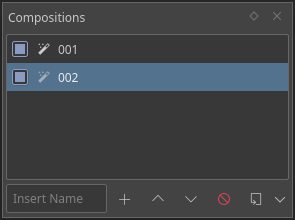
- Adding new compositions
You do this by setting your layers as you wish, then pressing the plus sign. If you had a word in the text-box to the left, this will be the name of your new composition.
- Activating composition
Double-click the composition name to switch to that composition.
..versionadded::4.4
- Rearranging compositions
You can rearrange compositions by using the up/down buttons.
- Removing compositions
The minus sign. Select a composition, and hit this button to remove it.
- Exporting compositions
The file sign. Will export all checked compositions.
Added in version 4.4: It is also possible to render animations for each selected composition. This will use the settings last used in the render animation dialog, simplifying the export process.
- Updating compositions
 a composition to overwrite it with the current configuration.
- Rename composition
- a composition to rename it.